
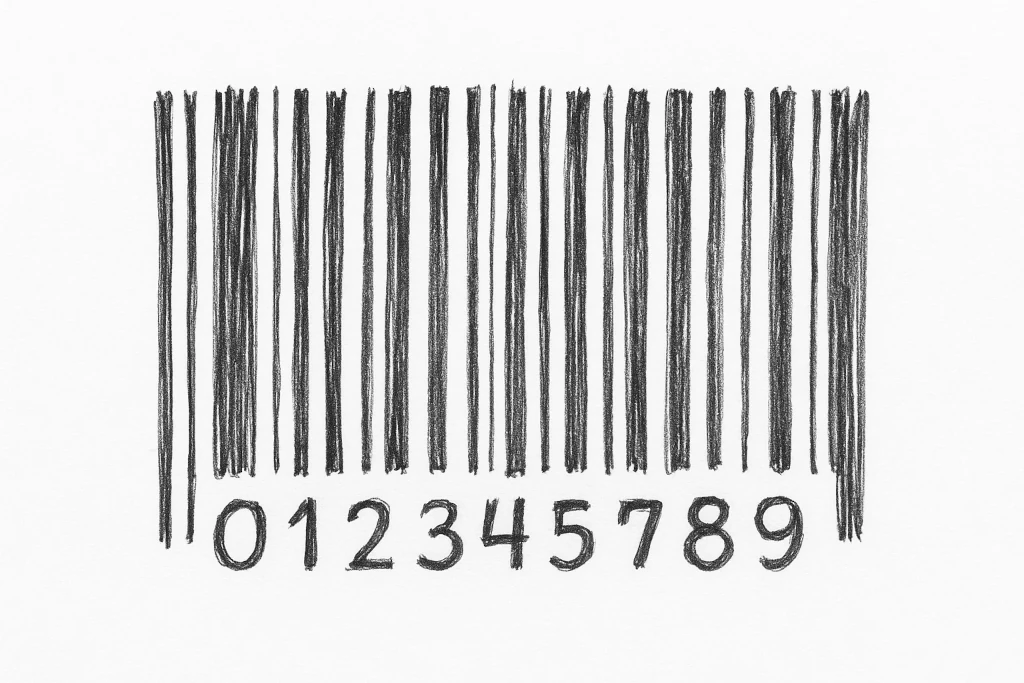
GTIN, EAN, ISBN and UPC are all universal product identifiers. On physical products, they can be seen as a number below product barcodes. These identifiers come in many length and some of them such as ISBN is exclusively for books. GTIN is the most general of them all and can include all others. Let’s take a look at each one.
GTIN — Global Trade Item Number
An umbrella term for the family of GS1 (the organization behind GTIN) product identifiers (GTIN-8, GTIN-12, GTIN-13, GTIN-14). Used worldwide as the canonical unique product identifier in retail and supply chains.EAN — European Article Number (commonly EAN-13 / EAN-8)
A 13-digit (or 8-digit) barcode numbering format used widely outside North America; commonly synonymous with GTIN-13.UPC — Universal Product Code (UPC-A / UPC-E)
The North American 12-digit barcode standard; it’s a type of GTIN (GTIN-12).ISBN — International Standard Book Number
The identifier used for books. Modern ISBNs are 13 digits (978/979 prefix) and are compatible with GTIN formatting for product feeds.
Why these matter for online stores?
There are several reasons. Generally adding product identifier to the shop’s products can make processing easier and improve visibility on other online platforms.
Product matching & deduplication: Marketplaces and shopping engines (Google Merchant Center, Amazon, etc.) use global identifiers to detect the same product across multiple sellers, avoid duplicates, and apply the correct product data (title, GTIN, brand, MPN). Without accurate product identifiers your listings may be rejected or not grouped correctly. (Google for WooCommerce explicitly recommends using WooCommerce’s built-in GTIN/global unique id where available.) WooCommerce
Feeds & structured data: Product feeds and structured data (schema.org/JSON-LD) often expect
gtin/gtin13/gtin12/isbnfields. Supplying the correct field improves visibility in Google Shopping and rich results.Inventory & operational benefits: Barcodes let you scan, reconcile inventory, and integrate with POS/warehouse systems.
How does WooCommerce support GTIN/EAN/UPC/ISBN?
Prior to version 9.2 of WooCommerce third-party plugins were used for adding GTIN to products but on version 9.2 WooCommerce added builtin support for these.
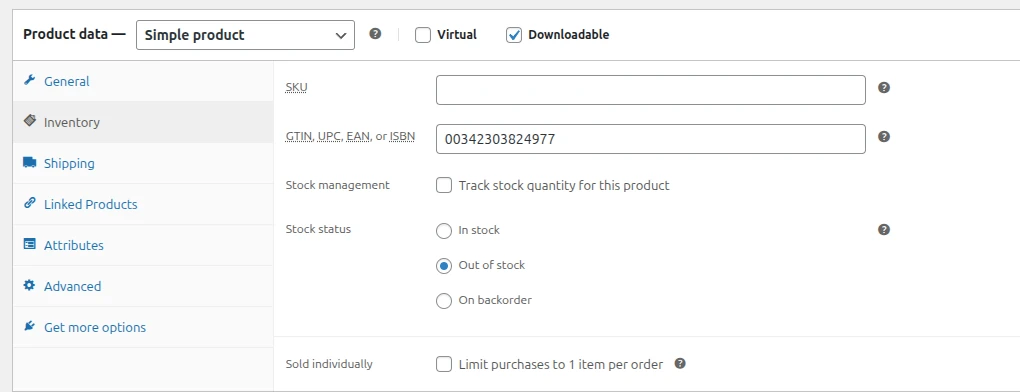
Refer to WooCommerce’s GTIN article to find out more about ways to add unique product identifiers and migration details.
Searching for GTIN/EAN/UPC/ISBN using ElasticProbe
ElasticProbe is a search plugin and hosted service (SaaS) and it can add make any info on the WordPress database searchable. By default these product identifiers are not included in the searchable fields. For a website owner or administrator, its worth focusing on the customer’s needs. If the customer and enduser would need to search by product identifier, add these fields to your searchable fields. Its highly recommended to understand the “Search Fields and Weighting” menu’s role and its mechanics.
WooCommerce 9.2 and higher
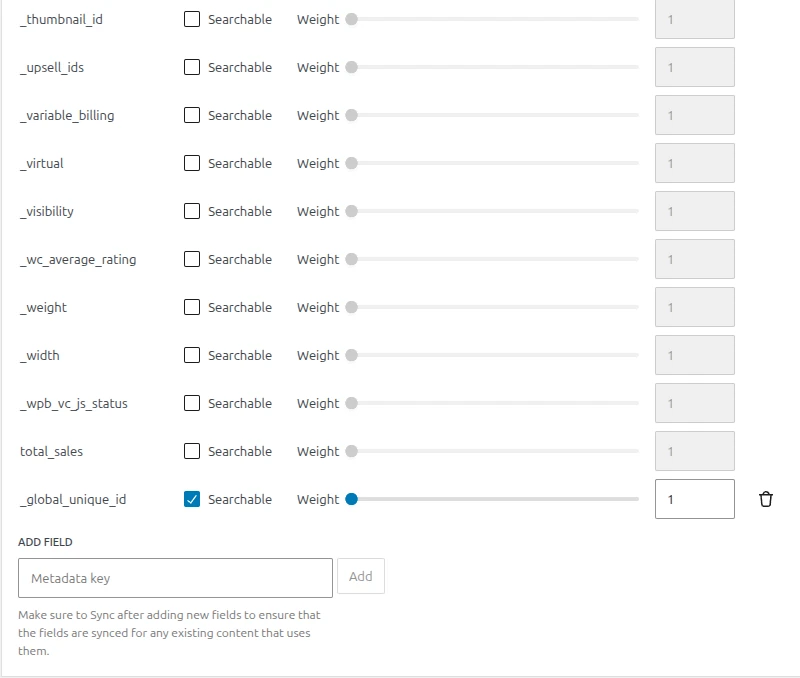
- Navigate to ElasticProbe-> Search fields & Weighting on WP admin dashboard.
- On the Products card collpase Metadata by clicking on it.
- Find
_global_unique_idand tick it. If it is not listed, add it through “Add Field” form and then tick it. - At the end make sure to click Save changes.
WooCommerce 9.1 and lower
Prior to version 9.2 of WooCommerce, third-party plugins are used to add product identifiers to products. These are usually saved in product metadata but the exact field name is dependent on the plugin. In this situation, skim under the product metadata in the “Search Fields & Weighting” menu for a familiar phrase such as _gtin or _ean. If you couldn’t find it, contact your GTIN plugin author for the exact field name.